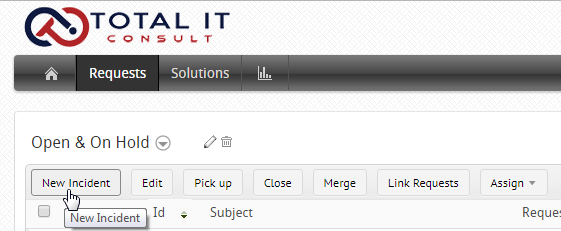
3. Click on "New Incident"Ticket logging Step 2.png 24.06 KB
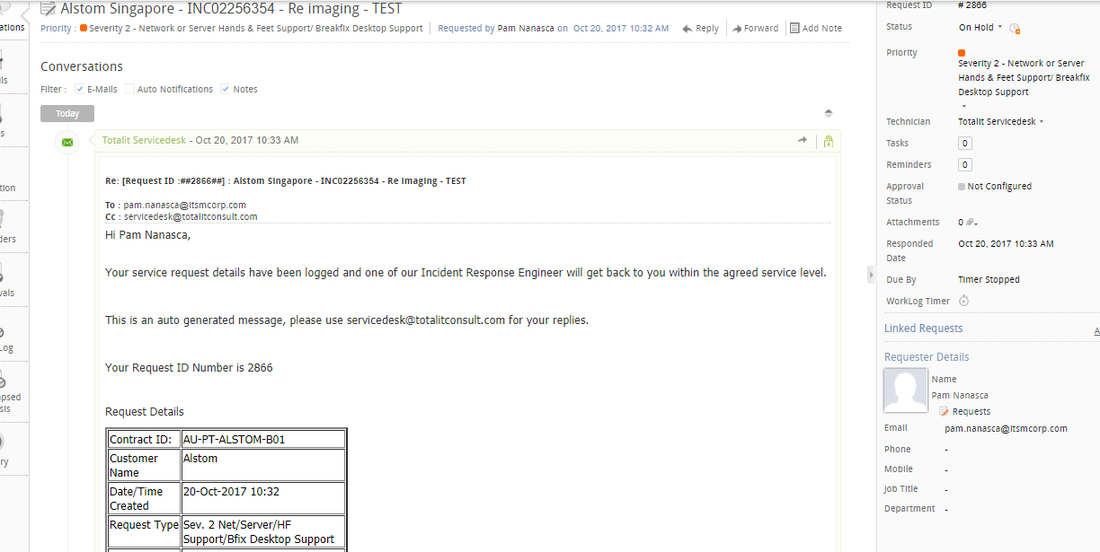
4. Fill up all the required fields. Final Ticket Logging.png 107.31 KB
Note: If there is a file attachment on the ticket request, download, drag and drop the files in the attachment field.
5. Click "Add Request"
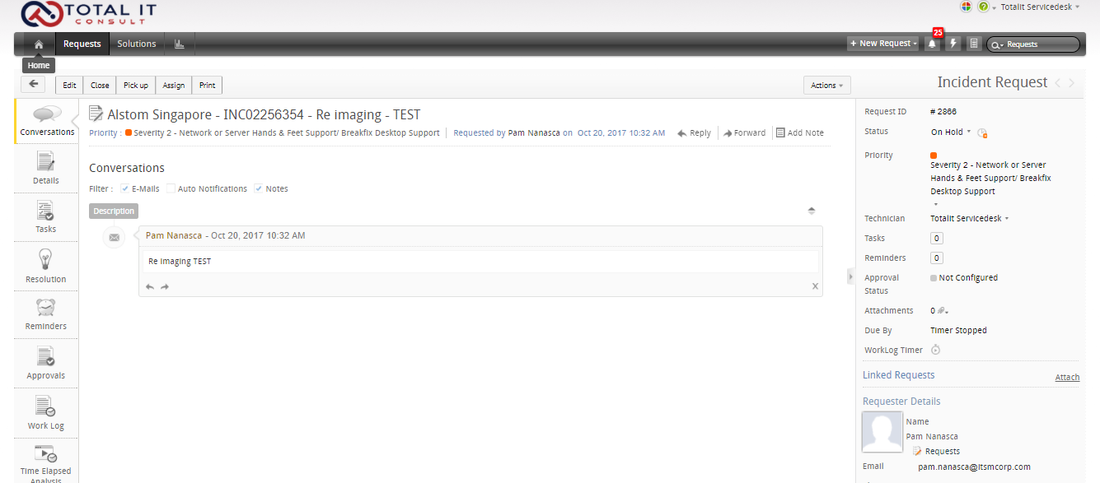
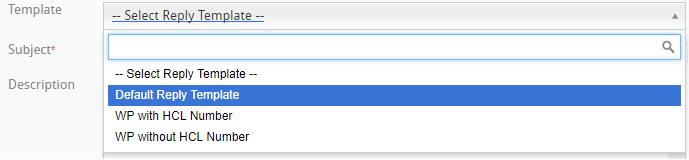
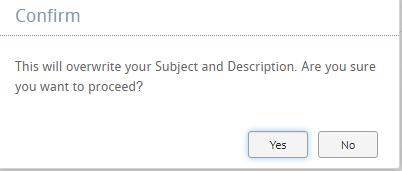
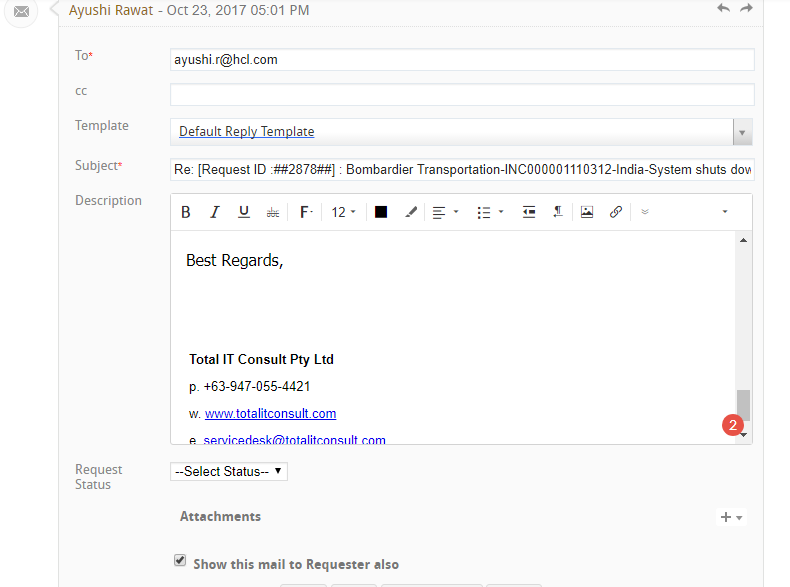
6. On the upper right part of the screen, click on "Reply"Reply Step 4.png 107.31 KB 7. Choose "Default Reply Template"Call log Step 7.png 8.77 KB 8. Just click "YES"Call log Step 8.PNG 7.14 KB 9. Scroll down and Write your name.call log Step 9.PNG 31.39 KB 10. Click on "Send"
11. Copy this template and relay the ticket to SP and Client. Template to send SP.png 84.86 KB 12. When relaying the ticket to SP/Client